

Why It Matters
- Transform designs into working applications quickly—without manual setup
- Validate your application early and catch issues before development
- Ensure design accuracy and consistency across all screens
- Test functionality and user flows instantly within the platform or on a real device
- Move forward with confidence from design to deployment
Overview
Turn your Figma designs into fully functional applications without manual setup. With Symplr, you can transform static UI screens into a structured, interactive application—without writing code or rebuilding screens. Symplr interprets your design and automatically generates screens, components, and navigation—so you can move from concept to application in minutes.What You Can Do with Symplr
- Import your Figma design effortlessly using a simple URL
- Automatically generate screens and navigation with precision
- Preview, build, and run your application instantly—all within the platform
Quick Start — Go from Design to App in Minutes
Turn your Figma design into a working application in just a few simple steps. In under 2 minutes, you can:- Copy your Figma file URL
- Import it into Symplr
- Review instantly generated screens
- Build and run your application
- A fully generated application built directly from your Figma design
- Screens and navigation automatically created with precision
- A working application ready to preview instantly in Symplr or on your device
What You’ll Need
Before you get started, make sure you have:- Access to a Figma design file with a valid shareable link
- A Symplr account with the necessary permissions
- A stable internet connection for a smooth experience
⭐ Prepare Your Figma File for Best Results
Symplr works best when your design is structured for clarity and scalability. A well-prepared file ensures faster, more accurate generation. For optimal results:- Use frames to define each screen
- Maintain clear and consistent screen names
- Avoid deeply nested groups that may affect interpretation
- Leverage reusable components for consistency
- Apply Auto Layout to support responsive behavior
Import Your Figma Design in Seconds
With just a Figma URL, Symplr securely accesses your design and prepares it for transformation into a fully structured application—without manual setup.How It Works
Step 1: Copy Your Figma File URL Open your Figma design and copy the shareable file link—your gateway to instant app generation.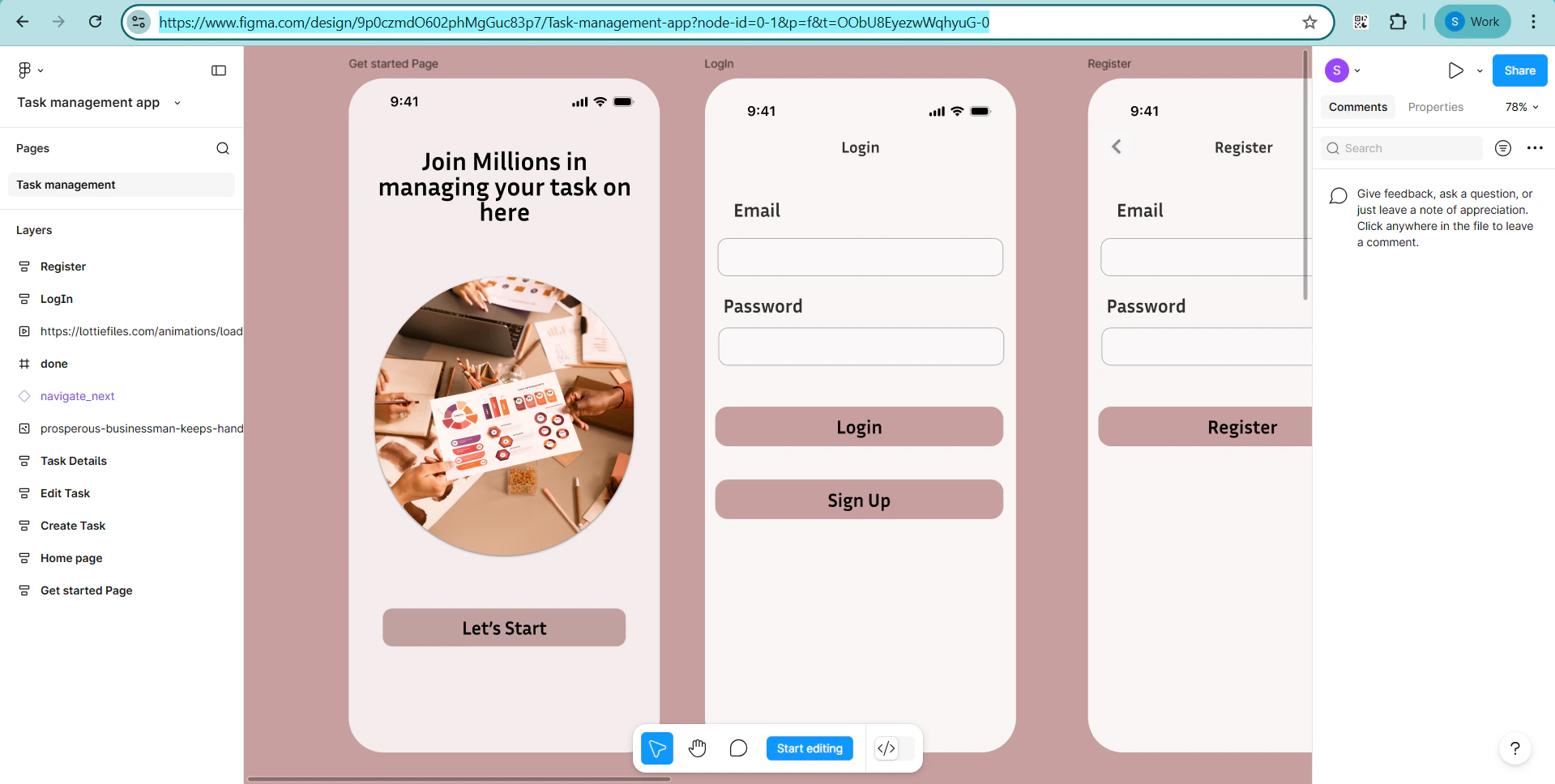
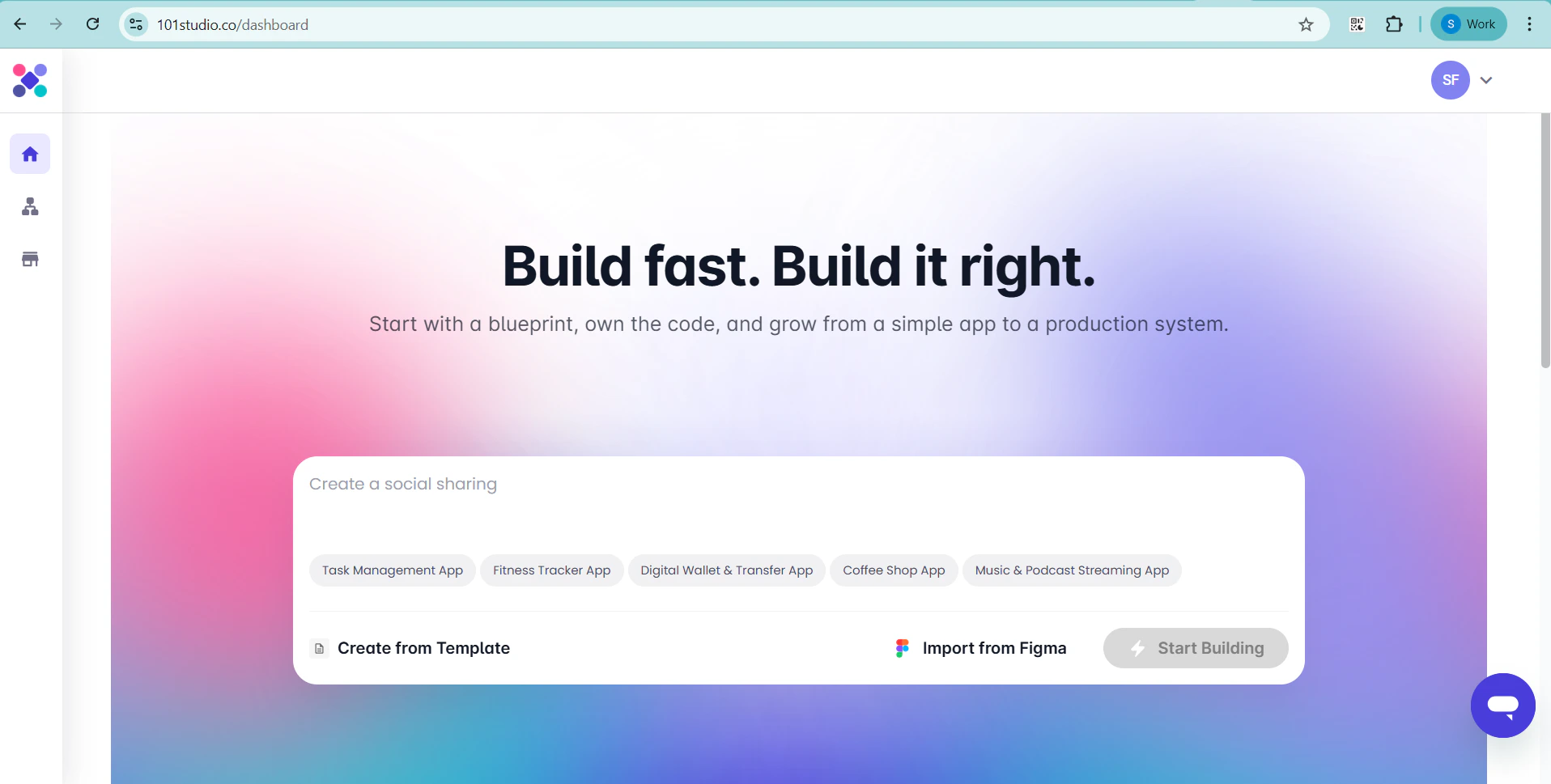
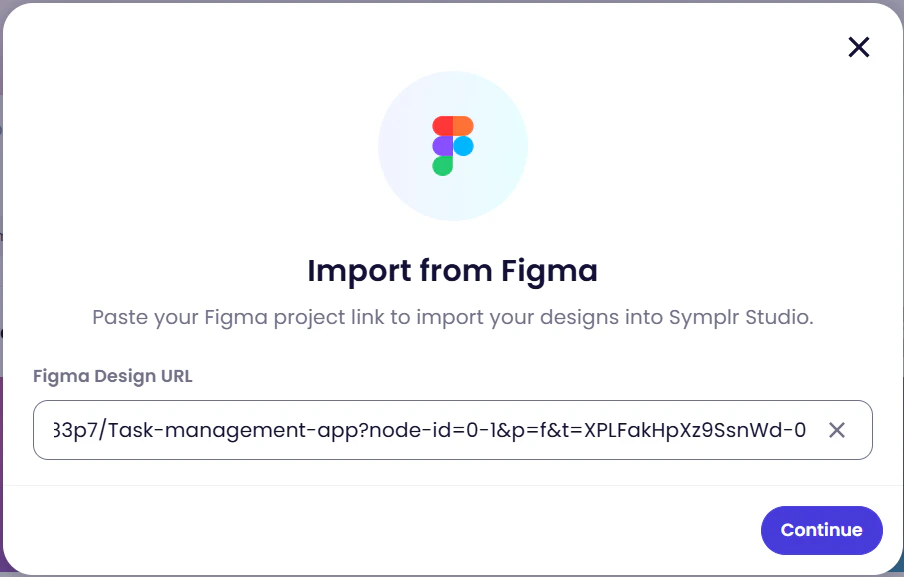
First time connecting? You’ll be prompted to authorize your Figma account—just follow the on-screen steps to enable access.
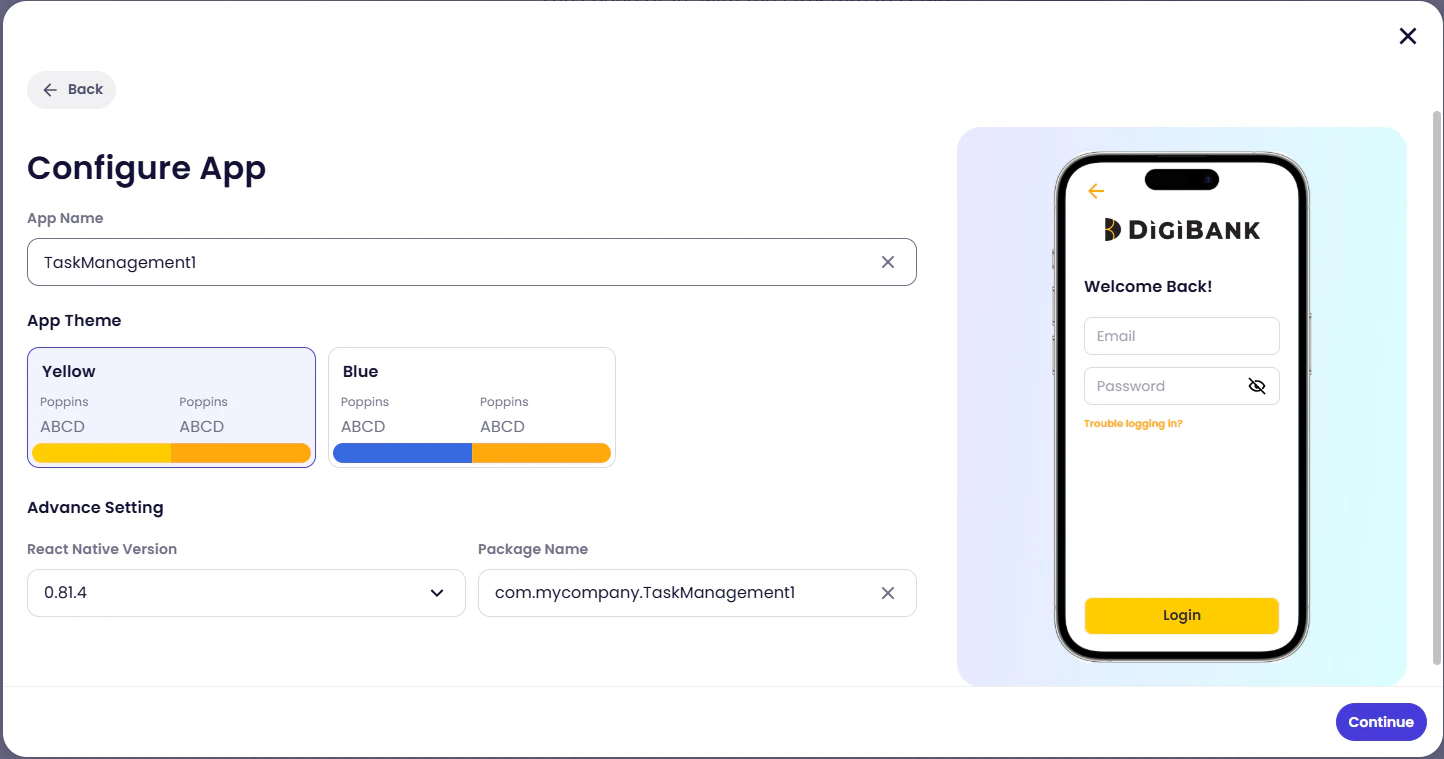
- App Name → Identify your project
- Theme → Define your application’s visual style
- React Native Version → Ensure compatibility
- Package Name → Required for build and deployment
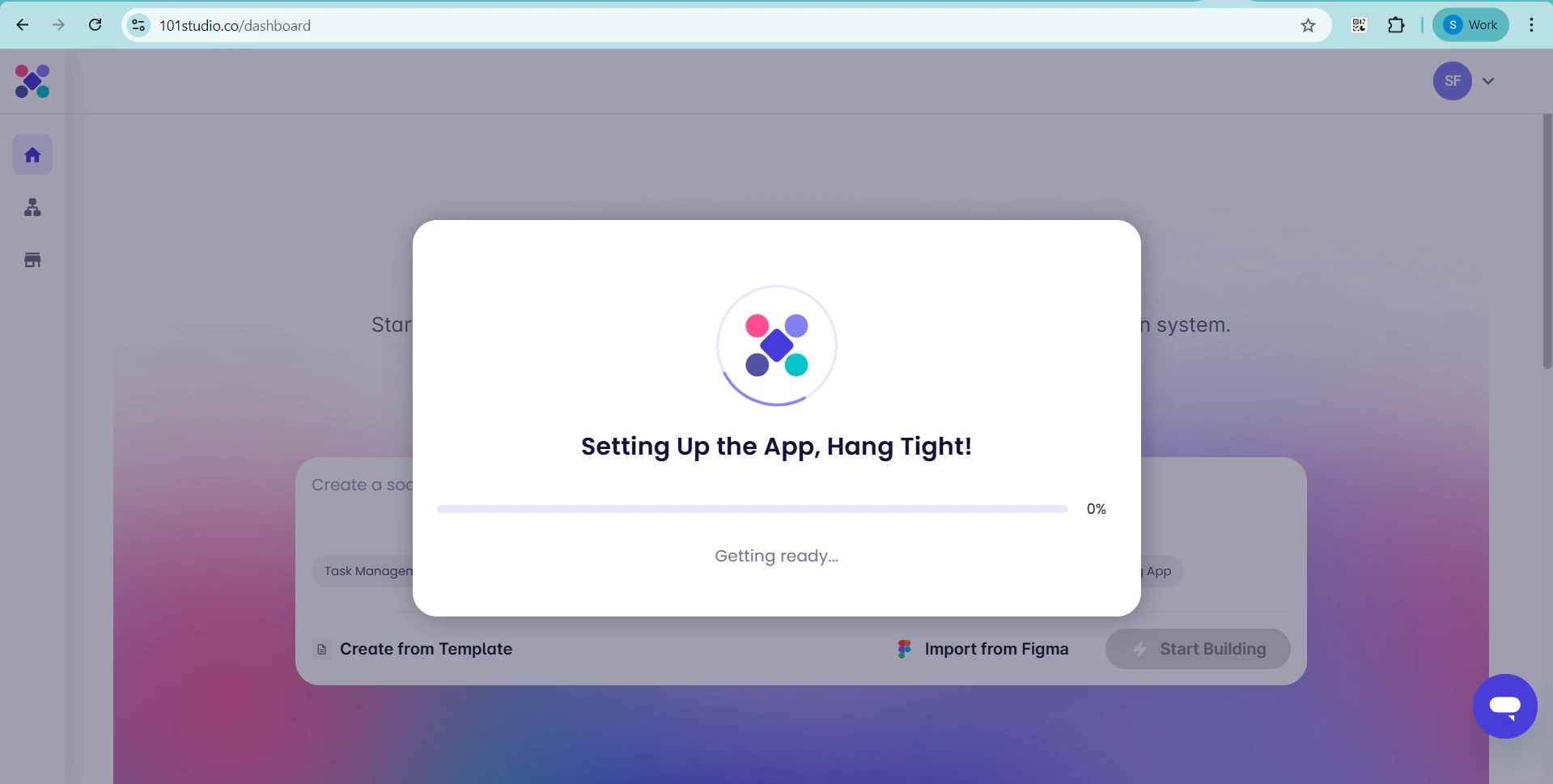
- Every screen brought to life exactly as defined in your Figma design
- Accurate structure and naming, preserving your original design intent
- Seamless rendering with all components
- Smart, automatic navigation, connecting screens without manual effort
- A complete visual flow, making it easy to understand and refine your application
- Ensure your Figma file is well-structured using frames for accurate screen recognition
- Use clear and consistent screen names to maintain alignment
- Avoid deeply nested groups or unsupported components that may affect rendering
- Verify that your Figma file permissions allow access for seamless import
- Make updates to your Figma design
- Re-import into Symplr to instantly regenerate your Blueprint View
View and Inspect Every Screen with Confidence
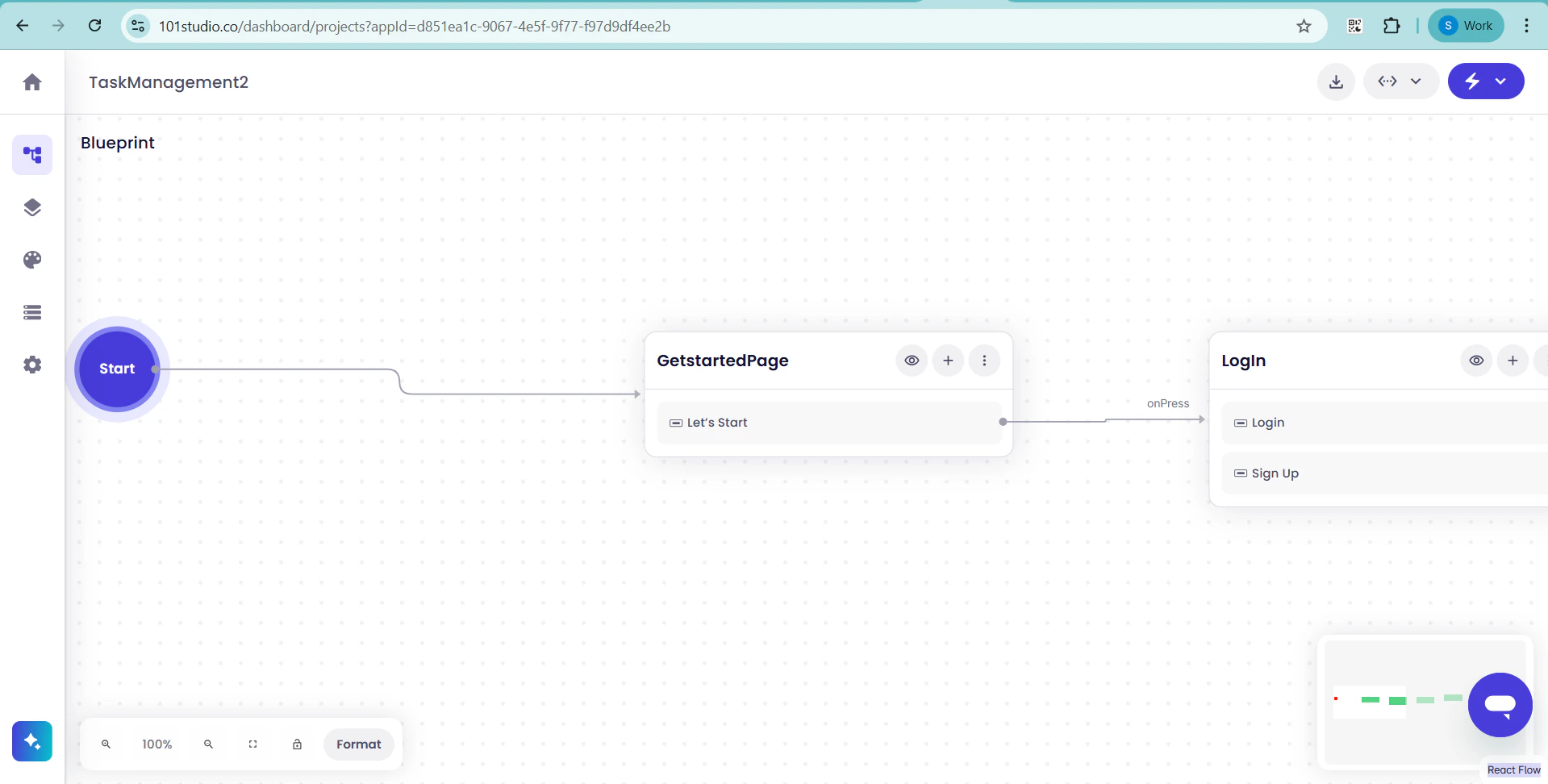
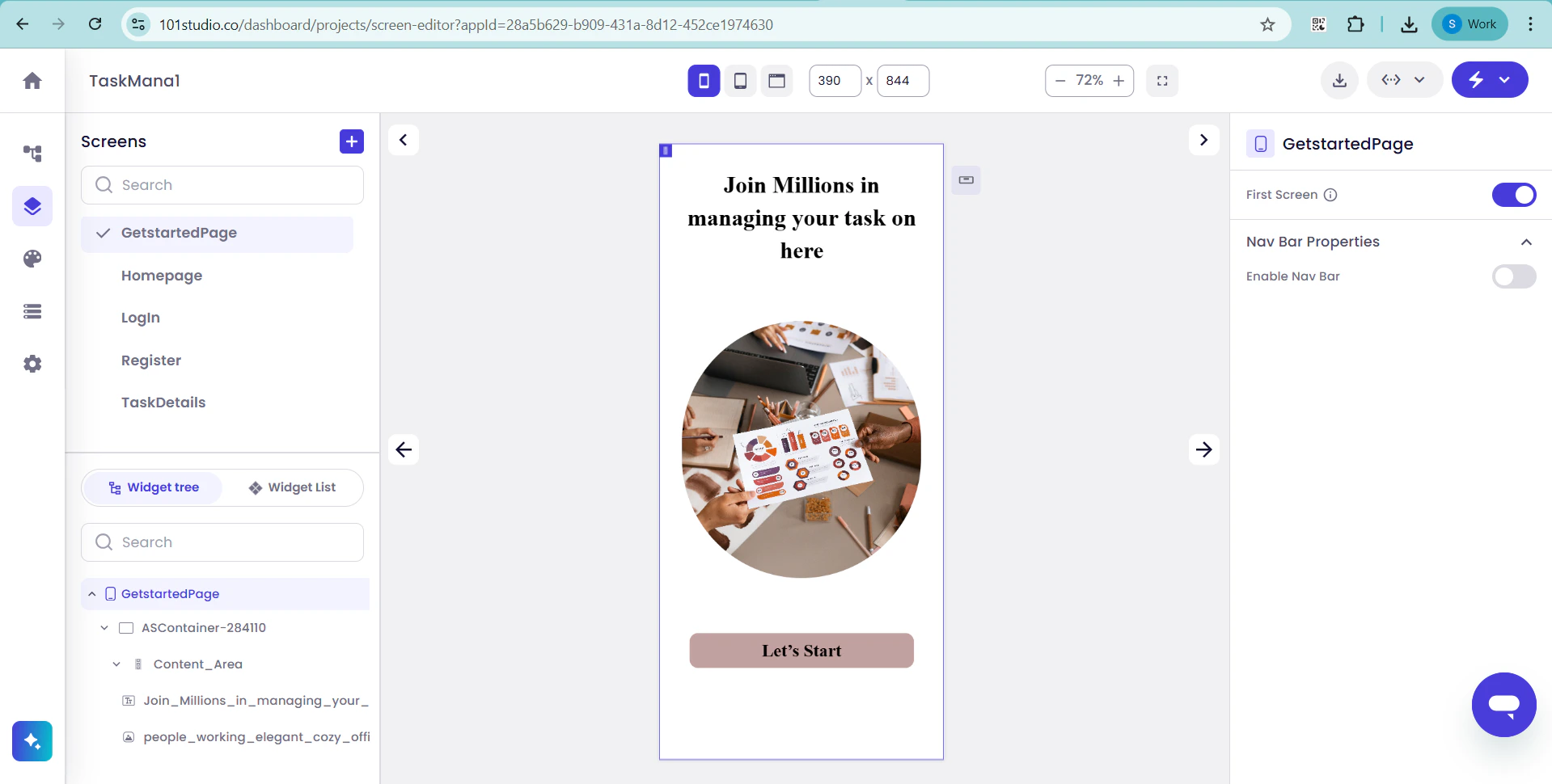
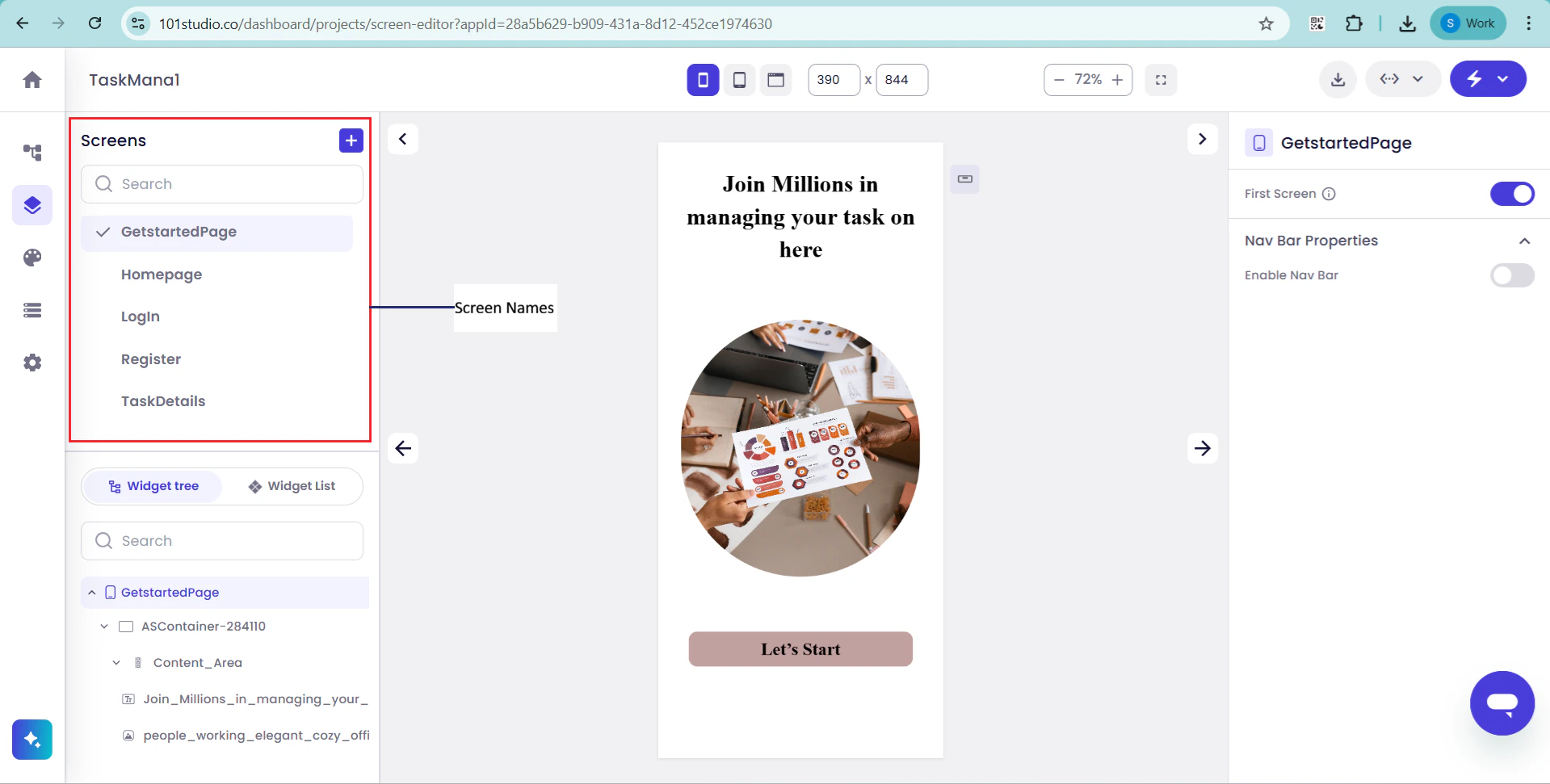
Once your design is imported, Symplr doesn’t just generate your application—it gives you complete visibility. You can view each screen individually to verify that all elements are accurately translated. How It Works Step 1: Access the Blueprint View As soon as your import is complete, Symplr presents a fully structured Blueprint View, giving you a high-level overview of your entire application. Step 2: Navigate to the “Pages” Tab Easily switch to the Pages tab to explore how your design is organized into pages and screens.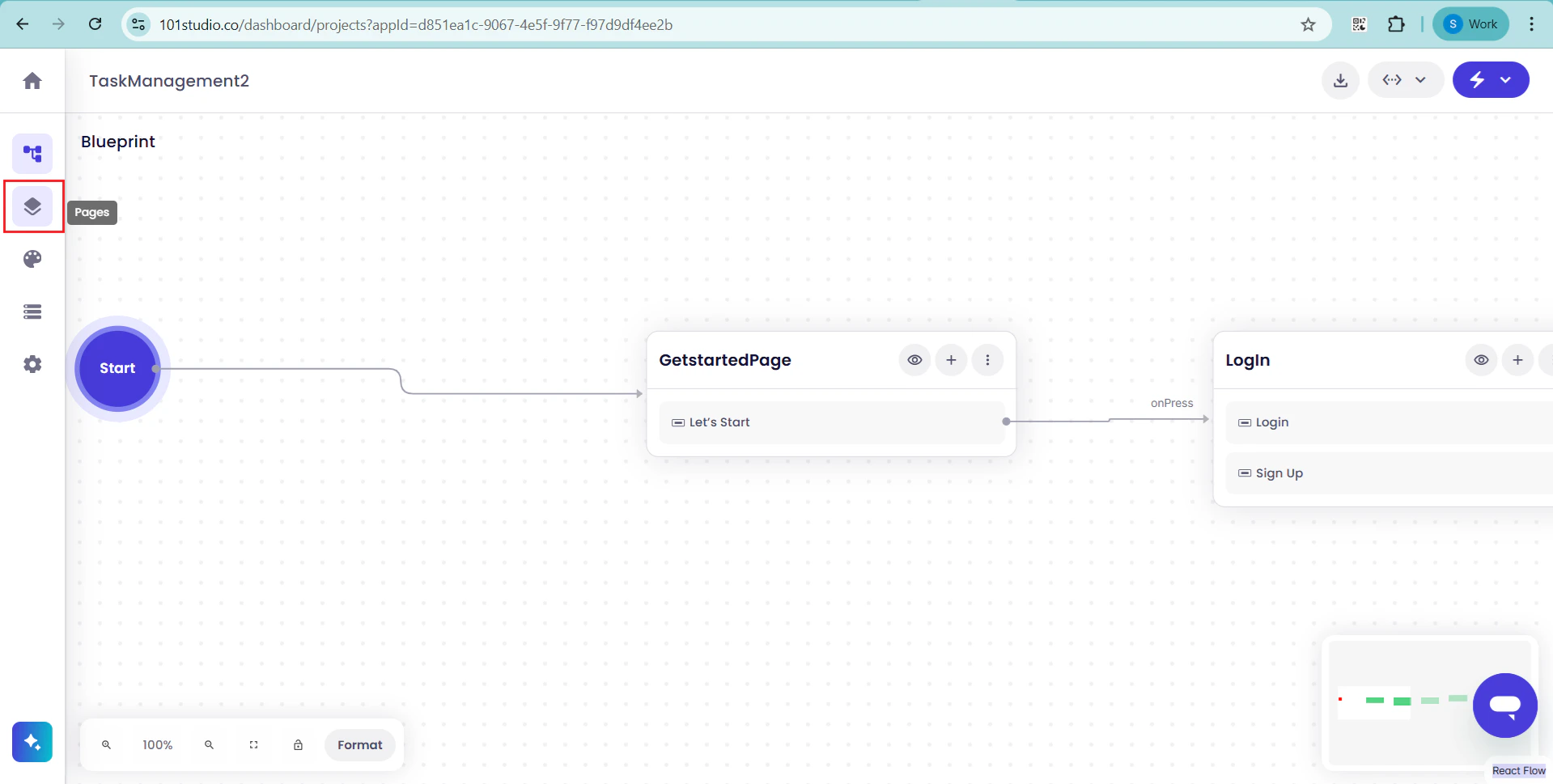
Build & Run Your Application Instantly
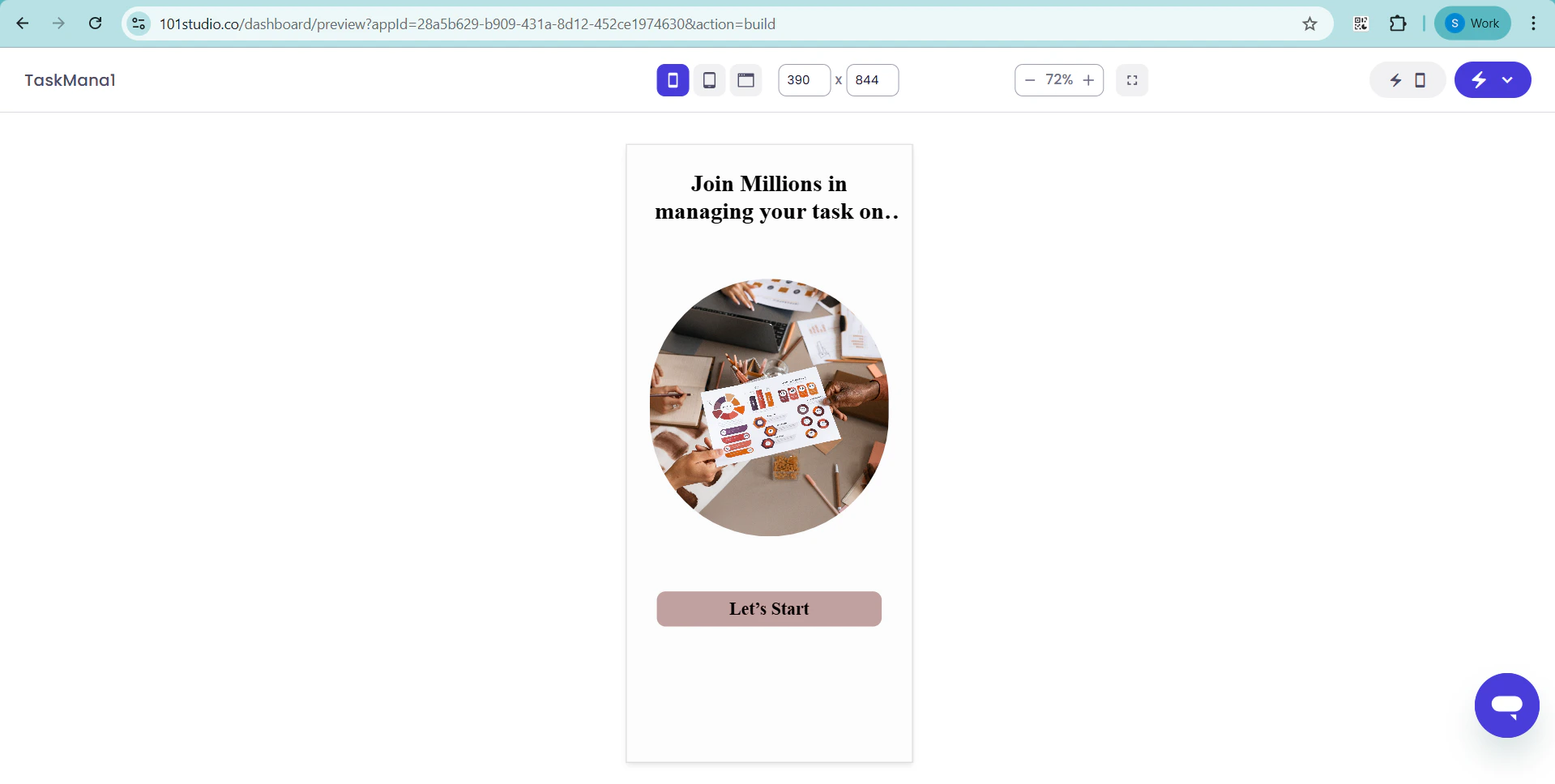
Once your application is generated, Symplr takes you one step further—letting you build and run your app instantly, without any local setup. Test functionality, validate user flows, and experience your application in action—all within the platform.Run Your App Directly in Symplr
Skip the complexity of environment setup. With Symplr, you can compile and run your application in just a few clicks.How It Works
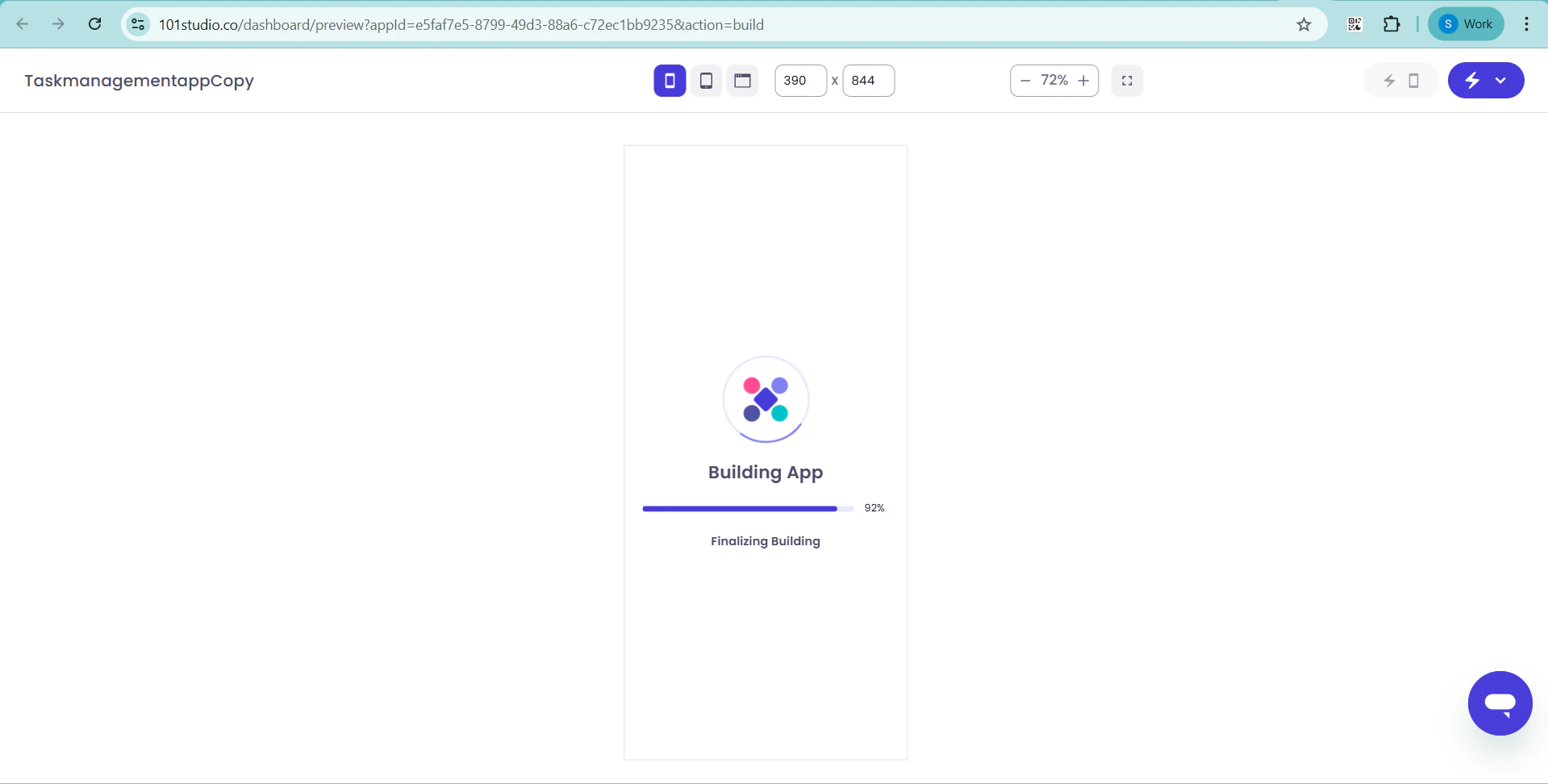
Step 1: Access Build & Run From the top-right corner of the interface, click “Build & Run App” to open the execution panel. Step 2: Start the Build Click “Build” to begin compiling your application. Symplr processes your generated code and prepares it for execution automatically.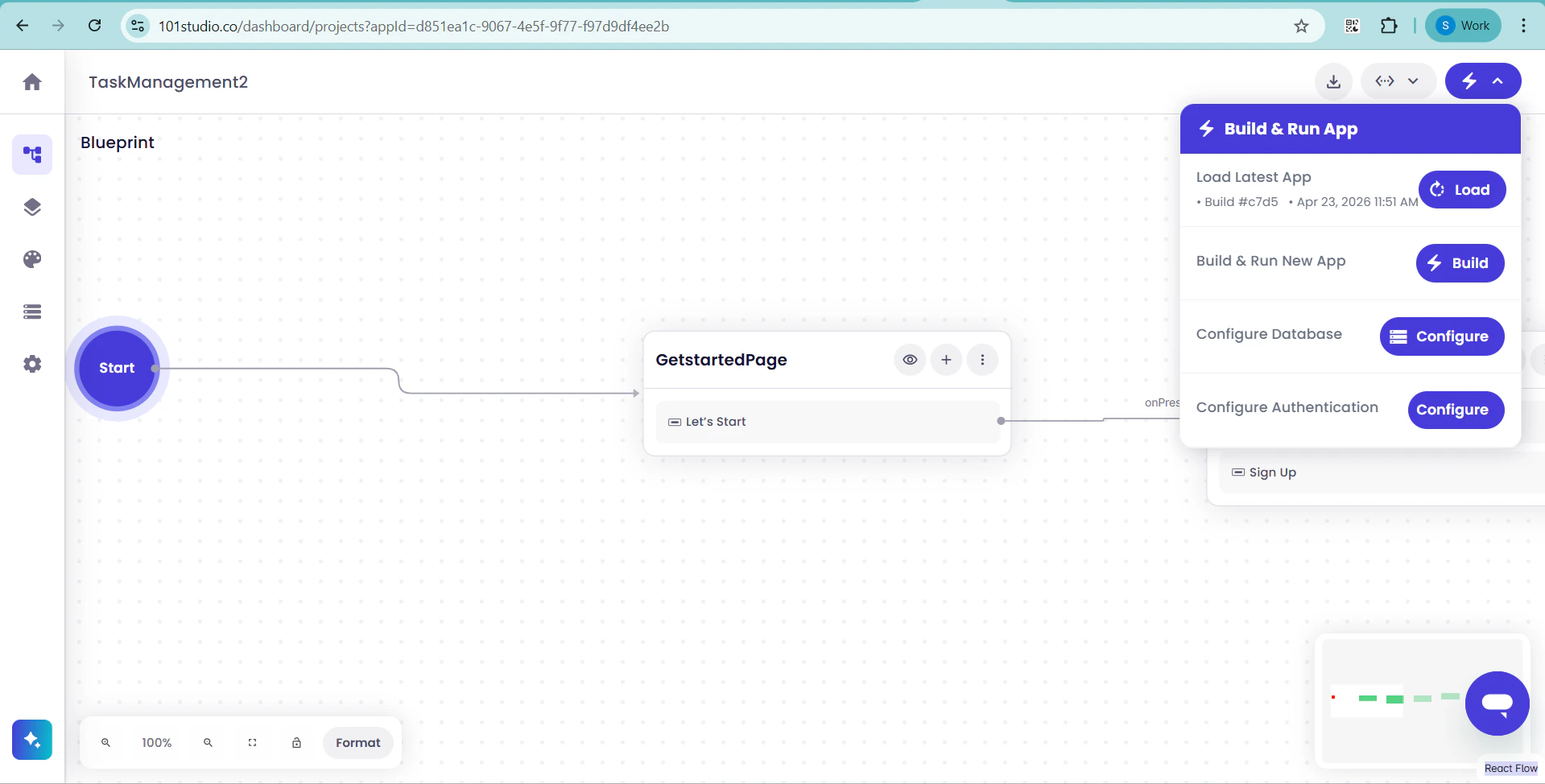
Run Your Application on a Real Device
Experience your application exactly as your users will. With Symplr, you can instantly run your app on a real mobile device—allowing you to validate performance, interactions, and user experience before deployment.How It Works
Step 1: Generate Your QR Code Click “Run App on Your Device” from the top-right corner. Symplr instantly generates a secure QR code for your application.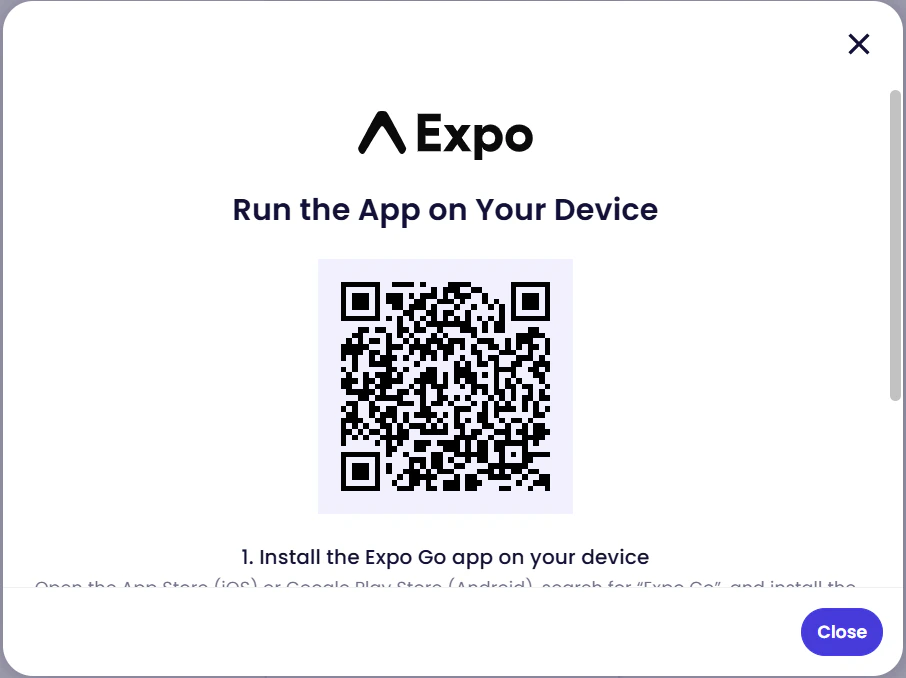
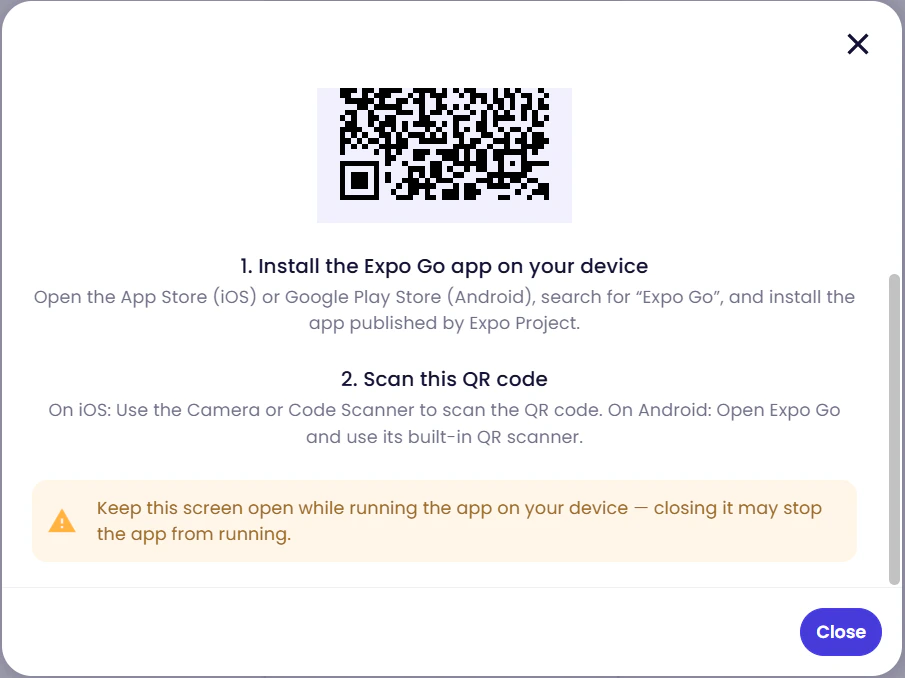
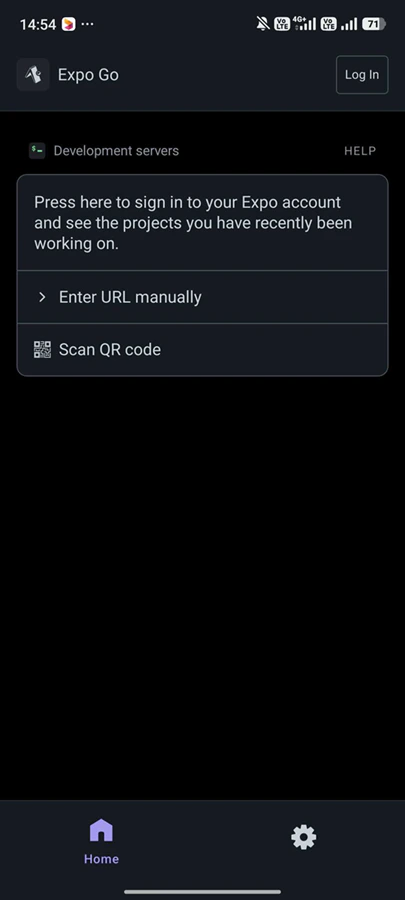
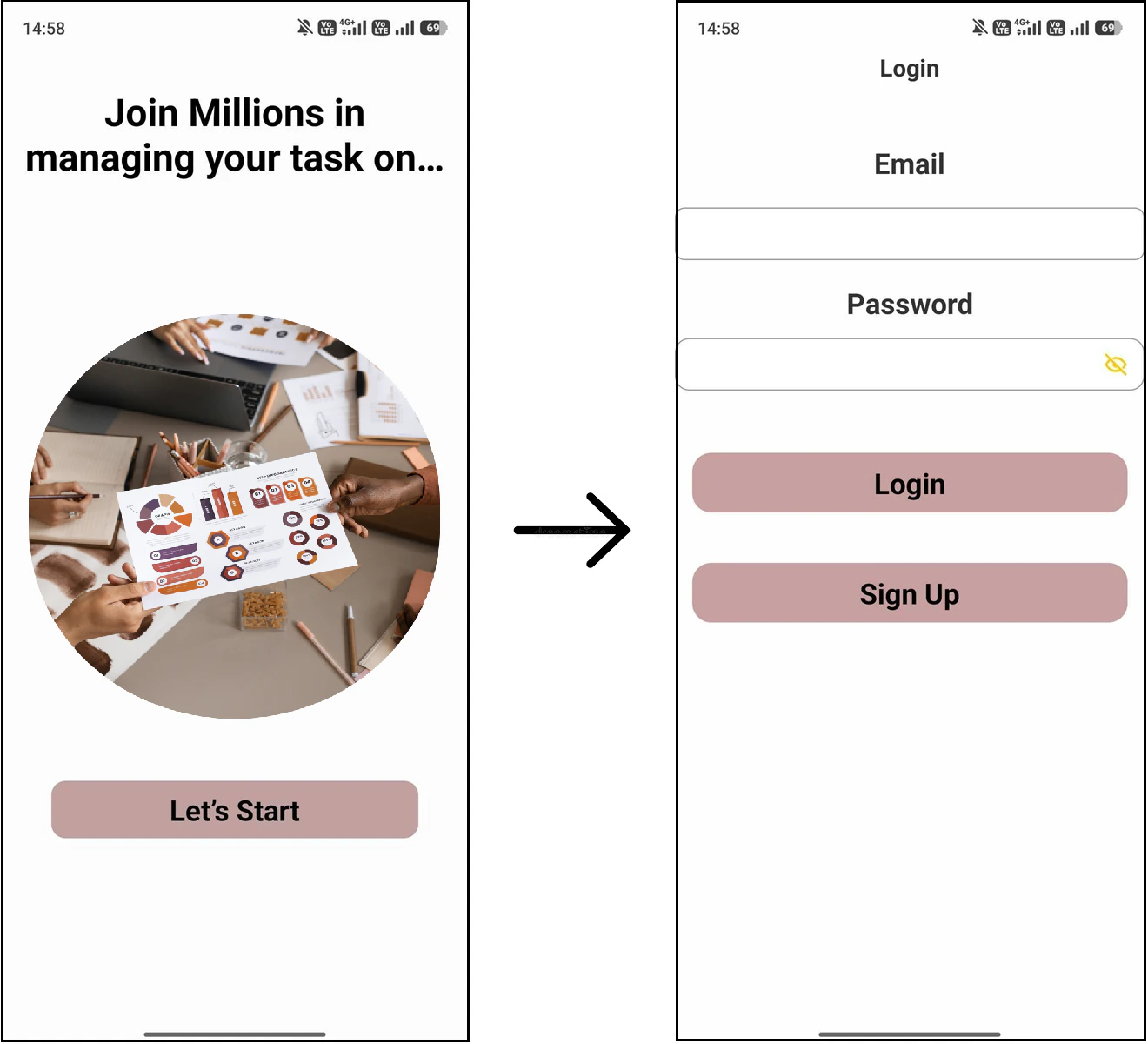
- Review every screen to ensure layouts and UI elements render perfectly
- Interact with buttons and controls to confirm responsiveness
- Navigate between screens to validate flow and user journeys
- Ensure the overall experience is smooth, intuitive, and aligned with your design
Need Help? We’ve Got You Covered
If something doesn’t look right, a few quick checks can get you back on track:- Ensure your Figma file is accessible (e.g., “Anyone with the link can view”)
- Verify your design structure if screens are missing
- Check for unsupported components or large file sizes